
Videos in Email Marketing: Enhancing Your Campaigns Effectively

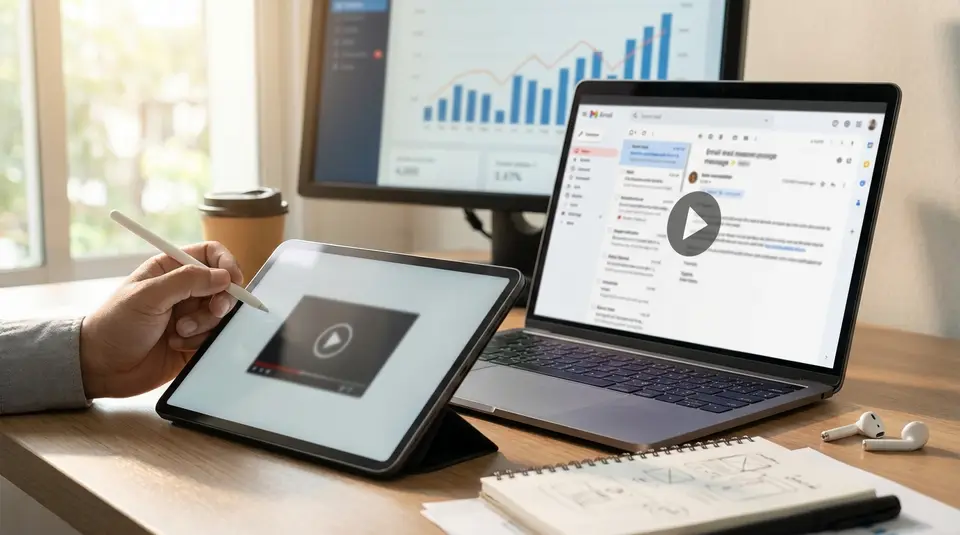
Video email marketing is the practice of using a video preview inside an email to earn a click and continue the experience on a web page where the video can actually play. Because many inboxes don’t reliably support embedded video, the safest approach is usually a strong thumbnail or short animated GIF with a clear play button and a single, obvious call to action. The details that make it work are simple but easy to miss: pick a thumbnail that reads well on mobile, add descriptive alt text and captions for accessibility, and link to a fast landing page you can track. Most underperforming video emails fail for one quiet reason.
Why video boosts email engagement and conversions
Best moments to add video in the funnel
Video tends to work best in email when it answers the reader’s next question faster than text can. In practice, that usually means adding a video preview at points where people feel uncertainty, need proof, or are deciding whether it’s worth taking the next step.
Early funnel, video can quickly set context. A short “what this is and who it’s for” clip in a lead magnet follow-up or newsletter helps subscribers connect the dots without scrolling through a long email. Mid-funnel, video shines when you need to reduce friction, like showing how onboarding works, what the product looks like, or how a workflow fits into someone’s day. Late funnel, customer stories and quick walkthroughs can help a prospect feel confident enough to book a demo or start a trial.
For retention, video is great for feature education and “what’s new” updates, especially when you include one clear click target and drive to a dedicated page that loads fast and matches the email’s promise (something you can measure cleanly in Mailscribe).
Common goals video helps you hit
Used well, video supports several common email marketing goals:
- Higher click-through rates: A clear thumbnail and play icon creates a strong visual cue that there’s something to watch, not just read.
- Faster comprehension: A 30 to 60 second clip can demonstrate a product, explain a change, or clarify setup steps without dense copy.
- More trust at decision time: Testimonials, founder intros, and behind-the-scenes clips can add credibility when subscribers are evaluating options.
- Fewer support and onboarding issues: Quick “how to” videos can prevent confusion and reduce back-and-forth, especially for new users.
- Better segmentation signals: Who clicks to watch (and what they watch) often reveals intent, helping you tailor follow-ups and offers.
The key is alignment. The video should earn the click by matching the subject line, reinforcing the email’s main point, and leading to a next step that feels obvious.
Video in email: embed options and what actually works
Thumbnail and play button linking
For most brands, the most reliable “video in email” approach is not an embed. It’s a thumbnail image with a play button that links to a page where the video plays instantly.
This works because it’s simple and widely supported across email clients. It also keeps your email lightweight, which helps load speed on mobile and can reduce rendering issues. Treat the thumbnail as your main CTA: make the entire image clickable, use clear surrounding copy, and link to a landing page that matches the promise in the subject line.
A small detail that matters: choose a thumbnail that still makes sense when images are cropped on mobile. A centered subject, big text (or no text), and a high-contrast play icon usually wins.
Animated GIF previews vs static images
An animated GIF can increase curiosity because it shows motion and a quick “teaser” of what’s inside. It’s best for short moments: a before/after, a quick product spin, a single step in a tutorial.
The tradeoff is consistency. Some versions of Outlook only display the first frame of a GIF, so your first frame needs to work like a static poster image (clear value, clear play cue). GIFs also add weight fast, so keep them short, cropped, and compressed.
If you are unsure, a strong static thumbnail often performs just as well, with fewer surprises.
Limited-support embedded video and fallbacks
True embedded HTML5 video in email is still limited. Some clients can play it (often Apple Mail, iOS Mail, Outlook for Mac, and Samsung Mail), while many others show a fallback image instead (Gmail is a common example).
If you do try embedded video, treat it as progressive enhancement:
- Include a clickable fallback image for unsupported clients.
- Make the fallback look identical to your “normal” thumbnail approach.
- Host the full video on a fast page so the click experience is smooth.
For a deeper compatibility overview, Litmus has a useful primer on video in email.
Mobile-first design for video emails that render everywhere
Subject lines that hint at video value
If your email includes a video preview, your subject line should set the expectation and sell the outcome, not just announce “video.” On mobile, people decide in a second whether to tap.
Good subject lines usually combine what the video helps them do plus a specific hook:
- “See the 30-second setup (no download needed)”
- “Watch how teams cut reporting time in half”
- “New feature: a quick walkthrough”
If you use “video” or “watch,” pair it with value (“Watch: how to fix X”) so it does not feel like filler. Keep the most important words up front, since many inboxes truncate subject lines on phones.
Image sizing, load speed, and dark mode
Your thumbnail is doing the heavy lifting, so design it for small screens first. Use a single focal point, high contrast, and a clear play button. Avoid tiny text on the image, since it often becomes unreadable on mobile.
To keep load speed fast, keep the image file size under control and export at an appropriate resolution (sharp on retina screens, but not huge). Also make the entire thumbnail clickable, not just the play icon, so it is easy to tap with a thumb.
Dark mode can invert or dim certain colors depending on the client. A simple way to reduce surprises is to use a thumbnail with strong contrast and avoid thin, light text over transparent backgrounds. If your play button is part of the image, make sure it stays visible on both light and dark UIs.
Accessibility: alt text, captions, transcripts
Accessibility improves performance, too. Add descriptive alt text that explains what the video is and why it matters, not just “video” or “play.” Example: “Video preview: 45-second demo of the new dashboard filters.”
On the landing page, include captions for the video, and provide a transcript when the content is instructional or detailed. This helps people watching without sound, supports screen readers, and makes the message easier to skim.
Video creative that drives clicks inside an email
Picking the right video length and format
Email is not the place for a long watch. Your job is to earn the click and deliver the payoff quickly on the landing page. In most campaigns, 30 to 90 seconds is a practical range for a first-touch video. Go longer only when the viewer is already highly motivated, like in onboarding or a deep tutorial.
Format matters as much as length. A simple structure performs well:
- The problem or goal (first 5 seconds)
- The “how it works” moment
- The next step
If the video will be watched on phones, prioritize clear audio, large on-screen elements, and tight edits. Product videos should show the UI early, not after a long intro.
Copy and messaging around the video
The email copy should set up the video, not compete with it. Aim for one main idea and one reason to click. A strong pattern is:
- One sentence that states the benefit
- One sentence that previews what they will see
- A clear CTA that matches the thumbnail
Avoid vague lines like “Check this out.” Instead, be specific about the outcome: “See the three settings that improve deliverability” or “Watch the 60-second walkthrough to get started.”
Also keep your promise aligned. If the email says “quick demo,” the landing page should open directly to the video and make it easy to continue from there.
CTA placement on thumbnail and in-body
Treat the thumbnail as your primary CTA. Put a clear play button in the center and make the entire image clickable. If you add text on the image, keep it short, high-contrast, and large enough to read on a small screen.
Then support it with a secondary, in-body CTA. This is a standard button or linked text right below the thumbnail, using the same destination URL. It helps when images are blocked or when someone scrolls past the preview and wants a clear next action.
One rule keeps this clean: one email, one main click goal. If the video is the focus, don’t surround it with multiple competing buttons.
Video email use cases marketers send every week
Welcome and onboarding sequences
A welcome email is one of the best places for video because intent is high and curiosity is fresh. A short intro video can explain what to do first, what success looks like, and where to get help. For SaaS, onboarding videos work especially well when they are tied to a specific action like “connect your account” or “publish your first campaign,” not a general brand story.
In a sequence, keep each video focused on one milestone. That makes it easier to write a clear subject line, track performance, and trigger the next email based on the click.
Product demos, tutorials, and explainers
Weekly marketing emails often include education, and video is perfect for “show, don’t tell.” Common high-performing formats include:
- A 60-second product demo that highlights one workflow
- A quick tutorial that solves a frequent support question
- An explainer that clarifies a concept your audience struggles with
These emails work best when the video is paired with a short summary for skimmers and a single CTA like “Watch the demo” or “See the step-by-step.”
Launch announcements and feature updates
When you ship something new, video can reduce confusion and speed adoption. A short walkthrough helps users understand what changed and why it matters. It also prevents the classic “I saw the announcement, but I didn’t try it” problem.
For updates, keep the message tight: what’s new, who it’s for, and what to do next. If the launch includes multiple features, consider one overview video plus links to separate pages for details, rather than one long video that tries to cover everything.
Tracking video email performance from open to revenue
CTR, watch behavior, and downstream conversions
Video in email is only “working” if it drives action after the click. Start with the basics, then connect them to revenue outcomes.
Click-through rate (CTR) tells you if the thumbnail, copy, and CTA are doing their job. If CTR is low, the issue is usually positioning (weak promise, unclear next step, or a thumbnail that does not read on mobile).
Next, look at watch behavior on the landing page. Useful signals include play rate, average watch time, and key milestone events (like 25%, 50%, 90% watched). If people click but don’t play, the landing page is often the problem: slow load, confusing layout, or a video that does not match the email’s promise.
Finally, track downstream conversions that matter to your business: trial starts, demo bookings, purchases, upgrades, or activation events. Video often improves confidence and understanding, so the impact may show up more in conversion rate and sales velocity than in CTR alone.
UTM tagging and attribution basics
UTM parameters help you attribute site sessions and conversions back to the specific email and campaign. Keep UTMs consistent so reporting stays clean.
A simple, dependable setup:
utm_source: your email platform or “newsletter”utm_medium:emailutm_campaign: the campaign name (use a stable naming convention)- Optional
utm_content: to distinguish “thumbnail” vs “button” clicks
Use the same destination page for all video CTAs in the email, and vary only utm_content if you want to compare placements without splitting the experience.
A/B tests that isolate video impact
To learn whether video is the difference-maker, test one variable at a time. Good, clean tests include:
- Video preview vs no video preview (same offer, same landing page)
- Static thumbnail vs GIF preview (same first frame and CTA)
- Different thumbnail frames (same video, same copy)
- CTA wording (“Watch the demo” vs “See how it works”)
Avoid mixing changes, like swapping the video and rewriting the whole email at the same time. If you want to prove video’s value, keep everything else as similar as possible so the results are easy to trust.
Common mistakes with video in email and how to avoid them
Deliverability and image-only email risks
A common mistake is building a “video email” that is basically one big image. Image-only emails can create problems: they are harder to understand with images off, they can look spammy, and they leave fewer readable signals for both inbox filters and subscribers.
A safer pattern is a balanced layout: a short headline, 1 to 3 lines of supporting copy, the clickable thumbnail, and a text CTA. Also keep your image weight reasonable, and always include meaningful alt text. If your team uses Mailscribe templates, make sure they leave room for real text around the video preview, not just a hero graphic.
Broken playback expectations and poor landing pages
People click expecting a video to play quickly. When the landing page is slow, cluttered, or forces extra steps (cookie walls that block the player, tiny play controls, hard-to-close popups), your click turns into frustration.
The fix is simple: link to a page where the video is immediately visible, above the fold on mobile, and clearly tied to the promise in the email. Keep the page focused. If you need a form (demo request, trial start), make it a clear next step after the video, not a barrier before it unless that is the explicit offer.
Also avoid “fake play buttons” that don’t lead to video. It trains subscribers to stop clicking.
Testing across clients before sending
Video emails fail most often because they were only checked in one inbox. Rendering quirks, dark mode behavior, blocked images, and GIF limitations can change the experience dramatically.
Before you send, spot-check:
- A webmail client (like Gmail)
- A desktop client (especially Outlook if your audience uses it)
- iOS Mail on an iPhone
- Dark mode on at least one device
- Images off (to confirm the email still makes sense)
If anything breaks, default back to the most reliable setup: a clean thumbnail with a play icon, clear text context, and a fast landing page.
Related posts
Keep reading

Building an Effective Email Marketing Strategy
Boost opens, clicks, and revenue with a friendly email marketing strategy focused on list building, segmentation, personalization, automation, and A/B testing.

Effective Email Marketing Opportunities in 2023
Unlock high-ROI email marketing opportunities in 2023 with personalization, automation, segmentation, mobile-ready designs and compliant, data-driven customer journeys.

Effective Email Marketing Strategies for Etsy Shop Owners
Discover cheerful, proven email marketing strategies for Etsy shop owners to grow subscribers, boost repeat sales, showcase handmade products and build loyal fans.

Empathy in Email Marketing: The Key Ingredient for Success
Boost email open rates and customer loyalty with empathetic, personalized email marketing that speaks to subscriber pain points, emotions, and real needs.

How To Stop Gmail Clipping By Keeping HTML Under 102KB
Stop Gmail clipping with practical HTML cleanup tips: cut hidden formatting, trim inline CSS, simplify tables, shorten links, and test size under 102KB.

Improve Email Tone with AI: Revolutionizing Digital Communication
Boost email tone with AI-powered rewriting that makes every message clearer, warmer, and more professional to increase replies and transform digital communication.